How to Export ChatGPT and Claude Conversations (PDF, Markdown, JSON)
Short answer: To save one conversation, open it, click the … menu, choose Export, then pick a range and a format — Markdown, JSON, PDF, or plain text. To back up everything, use the platform's own export instead: it emails you a ZIP of JSON covering your whole account.
Those two things get confused constantly, and the confusion costs people an afternoon. "Export my ChatGPT conversation" usually means this one chat, in a format I can read. What the official tools give you is every chat you have ever had, as raw JSON, by email. Both are useful. They are not substitutes.
This guide covers both, for ChatGPT, Claude, and Gemini.
What the official exports actually give you
All three platforms have an account-level export. As of July 2026, here is where each one lives and what comes out:
| Platform | Where | What you get |
|---|---|---|
| ChatGPT | Settings → Data controls → Export data | Emailed ZIP containing conversations.json — every chat, nested in a tree structure. Not available on Business or Enterprise workspaces. |
| Claude | Settings → Privacy → Export data | Emailed ZIP of JSON. You can pick a date range. Covers conversations and projects; memory is handled separately. Web and desktop only — not the mobile apps. |
| Gemini | No in-app export. Google Takeout → My Activity → Gemini Apps | Emailed ZIP. The link stays live longer than the other two, but the setup has a trap — see below. |
The Gemini trap worth knowing
In Google Takeout there is a product called Gemini and, separately, an activity category called Gemini Apps under My Activity. Selecting the first one does not give you your chat history — it gives you your Gems, the custom assistant configurations. Your actual conversations are activity data. Deselect everything, check My Activity, open the detail list, deselect all again, and check only Gemini Apps.
This is the single most common failed Gemini export, and it fails silently: you get a file, it just isn't the file you wanted.
Three limits all three share
- All or nothing. You cannot pick individual conversations. Claude lets you narrow by date, which is the closest any of them come.
- JSON isn't readable. Opening
conversations.jsonin a text editor is not a way to read a chat. Getting a table, a code block, or a recipe out of it means writing a parser or finding one. - You wait, then the link expires. Delivery is by email and the download windows are short — for ChatGPT and Claude, hours rather than days. Miss it and you request again.
None of this is a flaw exactly. These tools were built for data portability and compliance, not for the Tuesday-afternoon job of filing one useful conversation somewhere you'll find it again.
How to export a single conversation
This is the two-click version. It works the same way on ChatGPT, Claude, and Gemini.
-
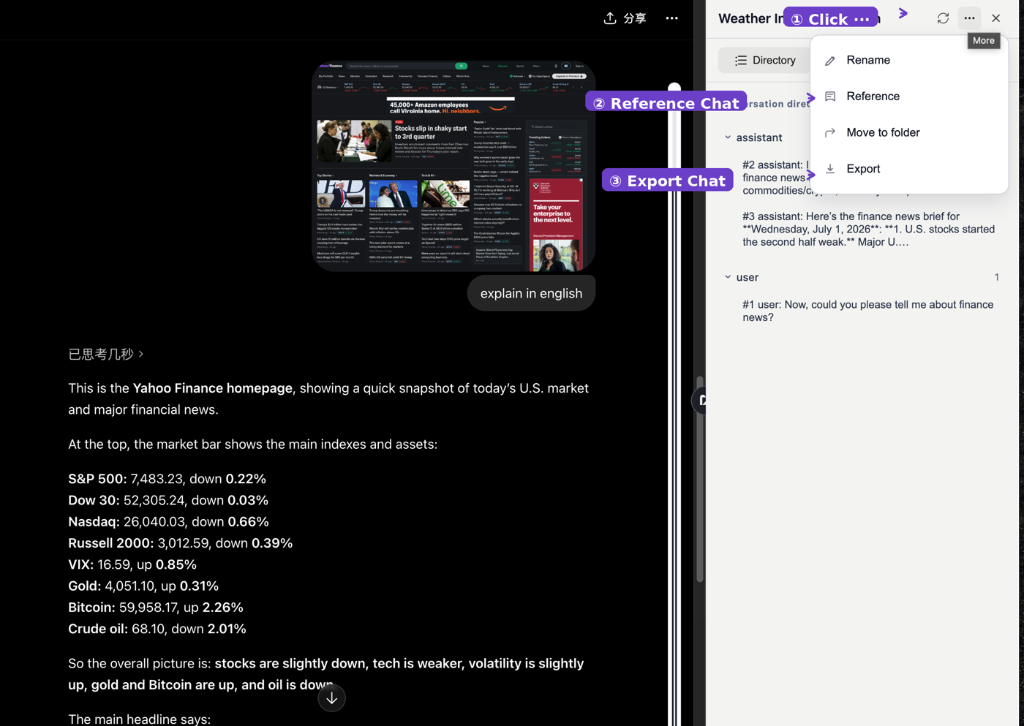
Open the conversation and click the … menu, then Export. The menu sits in the conversation's Quick Actions panel, alongside Archive, Rename, and Move to folder.
-
Choose a range, then a format. You can export the whole thread or only selected messages — useful when a long conversation contains one section you actually need. Then pick your format and confirm.
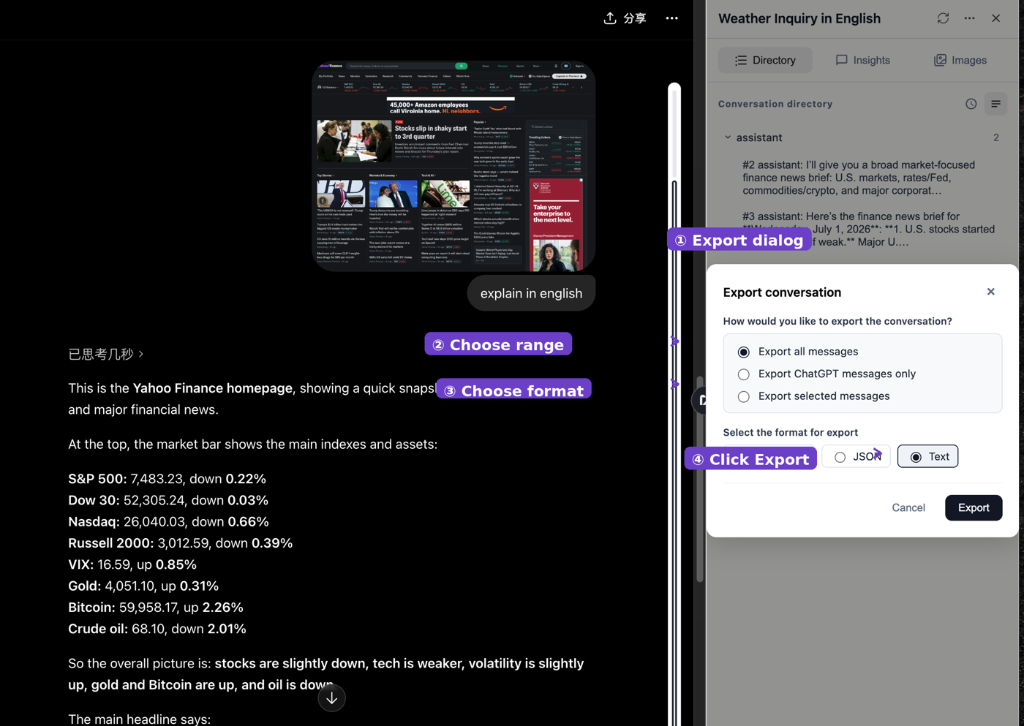
The file downloads directly. No email, no waiting, no expiring link.
Which format to choose
| Format | Use it when |
|---|---|
| Markdown | You're filing the chat into notes — Notion, Obsidian, Bear, a Git repo. Headings, lists, and code blocks survive intact. |
| JSON | You're processing it: scripting, building a dataset, feeding a RAG pipeline. Structure and metadata preserved. |
| Someone else needs to read it — a client, a colleague, a submission. Fixed layout, opens anywhere. | |
| Plain text | You want the words and nothing else, or you're pasting into a system that strips formatting anyway. |
If you're unsure, Markdown is the safest default. It stays readable as plain text and converts cleanly into almost anything else later.
Worth knowing: as of July 2026, PDF and image exports on the free plan include a small watermark. Markdown, JSON, and text exports do not. Pro removes it everywhere.
When you don't need to export at all
A lot of exporting is really an attempt to solve one of two different problems.
If you're exporting because you want the AI to remember what you already discussed, exporting is the long way round — you save a file, then paste it back in. Referencing the earlier conversation directly does the same job without the round trip, using the Reference option in the same Quick Actions menu.
If you're exporting because your chat history has become unfindable, the file isn't the fix either — folders and tags are. Organizing conversations at the source means you only export the handful of chats that genuinely need to leave the platform.
Frequently Asked Questions
Export any conversation in two clicks.
MindMarks adds per-conversation export to ChatGPT, Claude, and Gemini — Markdown, JSON, PDF, or text, straight to your machine. It also gives your chat history folders, tags, and search.
 Add to Chrome
 Add to Edge
 Add to Firefox