How to Download All Images from a ChatGPT Conversation
Short answer: ChatGPT has a built-in Image Library that stores images it generated for you — but it doesn't include images you uploaded, and it isn't organized by conversation. To collect every image from one specific chat, uploads included, open the MindMarks side panel and switch to the Images tab.
This one has changed recently. ChatGPT didn't always have a way to keep track of your images, and a lot of advice still reflects that older setup. Since the Image Library launched, the answer has become more nuanced — and knowing exactly where the line falls saves you from looking for a feature that isn't there.
What ChatGPT's Image Library actually covers
The Library lives in the ChatGPT sidebar and is available on free and paid plans alike. Per OpenAI's own documentation, every image you create in ChatGPT is saved there automatically. It's a genuine improvement, and for one particular use case — "I made a picture last week; where did it go?" — it works well.
Three things it doesn't do:
| Gap | What it means in practice |
|---|---|
| Uploads aren't included | Screenshots, photos, and reference images you sent to ChatGPT never appear in the Library. It stores what the model made, not what you gave it. For anyone who mostly uploads images rather than generating them, the Library may be nearly empty. |
| It's not organized by conversation | The Library is one continuous grid of everything you've generated. If you want the six images from one particular project chat, you're scrolling through a wall of unrelated pictures, trying to recognize the ones you need. |
| No batch download | Images can only be downloaded one at a time by right-clicking each one. There's no select-all, and no "download this conversation's images." |
There's also a coverage detail worth knowing: the Library was built around ChatGPT's current image model, so images from the older DALL·E era may not be there.
And on Claude and Gemini, there's no equivalent feature at all — images remain accessible only within the conversations where they were created or uploaded.
How to see every image in one conversation
The side panel takes the opposite approach: instead of one global library of generated images, it scopes to the conversation you're currently reading and shows everything in it.
-
Open the conversation and click the MindMarks icon on the right edge of the page. The side panel slides out.
-
Switch to the Images tab. Every image in the conversation appears in a single grid — generated images and your uploads, with uploads grouped separately so you can tell them apart. Click any image to download it at full resolution.
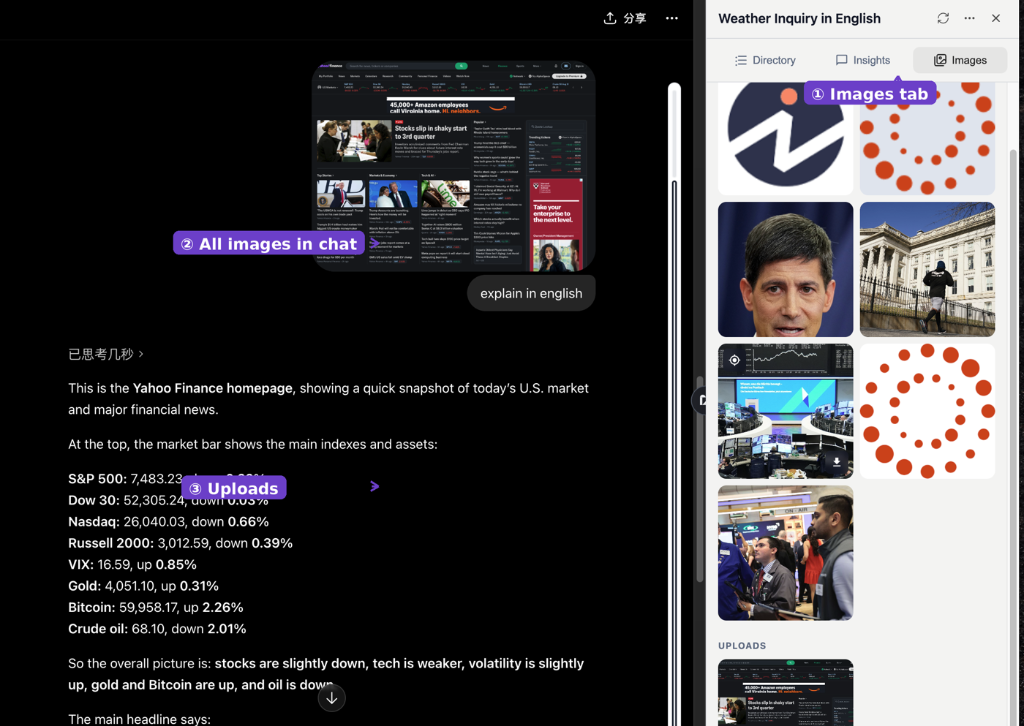
The Images tab collects every image in the conversation, with uploads shown separately from generated images.
The practical difference is scope. The Library answers "show me everything I've ever generated." The Images tab answers "show me everything in this chat" — which is usually the actual question when you're trying to pull assets out of a project conversation.
Which one to use
| Situation | Use |
|---|---|
| Looking for something you generated but don't remember where | ChatGPT's Image Library |
| Collecting the images from one specific conversation | Images tab |
| Retrieving screenshots or photos you uploaded | Images tab — the Library doesn't have them |
| Working in Claude or Gemini | Images tab — there's no native library on either |
Worth knowing: image URLs on AI chat platforms can expire over time. If a conversation contains images you'll want later, save them while the conversation is still relatively recent rather than assuming they will remain accessible months later.
Frequently Asked Questions
Related Articles
Export any conversation in two clicks.
MindMarks adds per-conversation export to ChatGPT, Claude, and Gemini — Markdown, JSON, PDF, or text, straight to your machine. It also gives your chat history folders, tags, and search.
 Add to Chrome
 Add to Edge
 Add to Firefox